
|
|
Example: A single digital download with custom green screen background selection is normally $14. However, the digital bundle for the same sized digital file is $49 and comes with 10 pre-determined backgrounds. |
Create a digital bundle
- Click Products from the left hand menu panel, then select Digital Bundles from the drop-down menu.
- To create a new digital bundle click on the green +Digital Bundle button in the top right hand corner. Complete the details for the digital bundle.
- Click the green Save button at the bottom to complete the digital bundle.
Adding Green Screen Variants
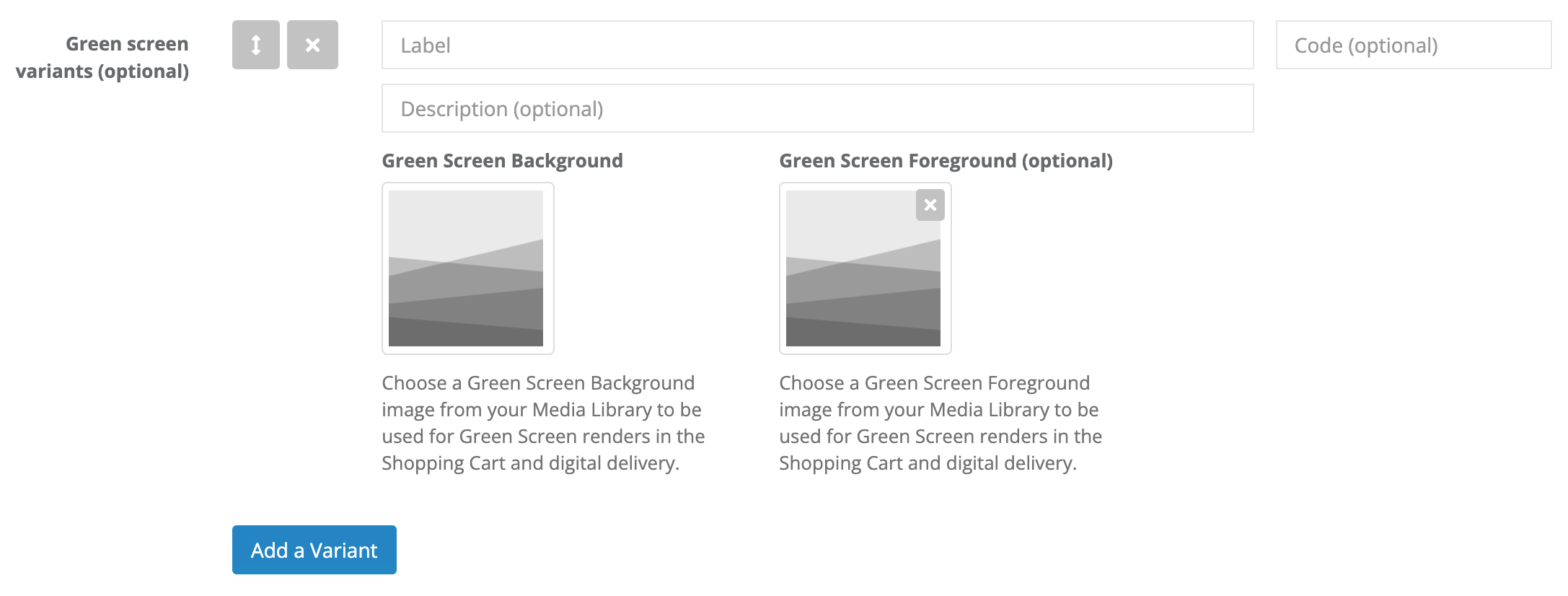
- To add a Green Screen Variant click on the image file icon to open the Media Library. This process is the same for both Backgrounds and Foregrounds.
- The Media Library will pop-up with your preloaded green screen options.
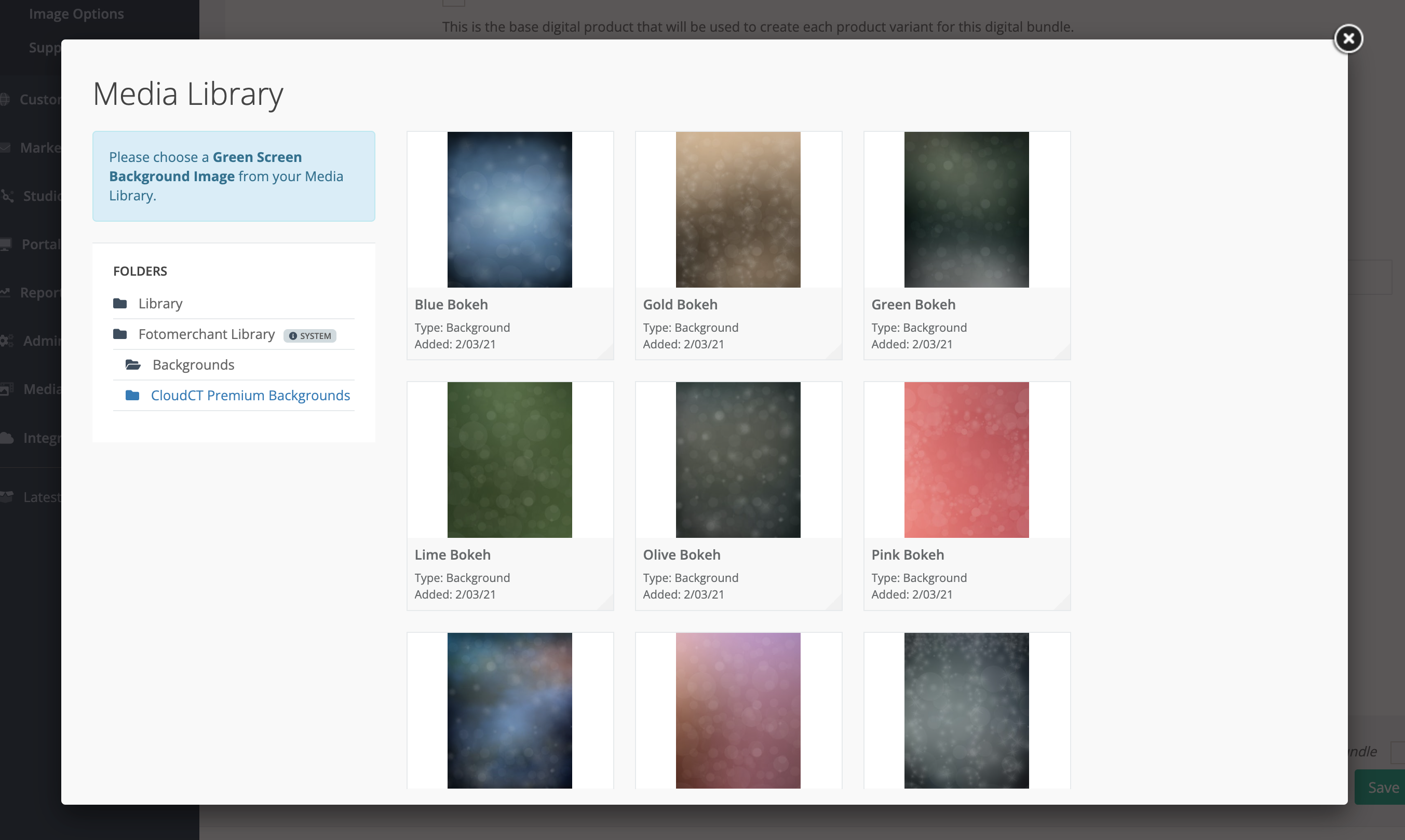
Note: If you do not see any backgrounds or foregrounds but are certain that they have been uploaded to the Media Library, we recommend to go into the Media Library to check that the correct type has been selected for the files. The system will only show backgrounds that have the type set to backgrounds and foregrounds that have the type set to foregrounds.
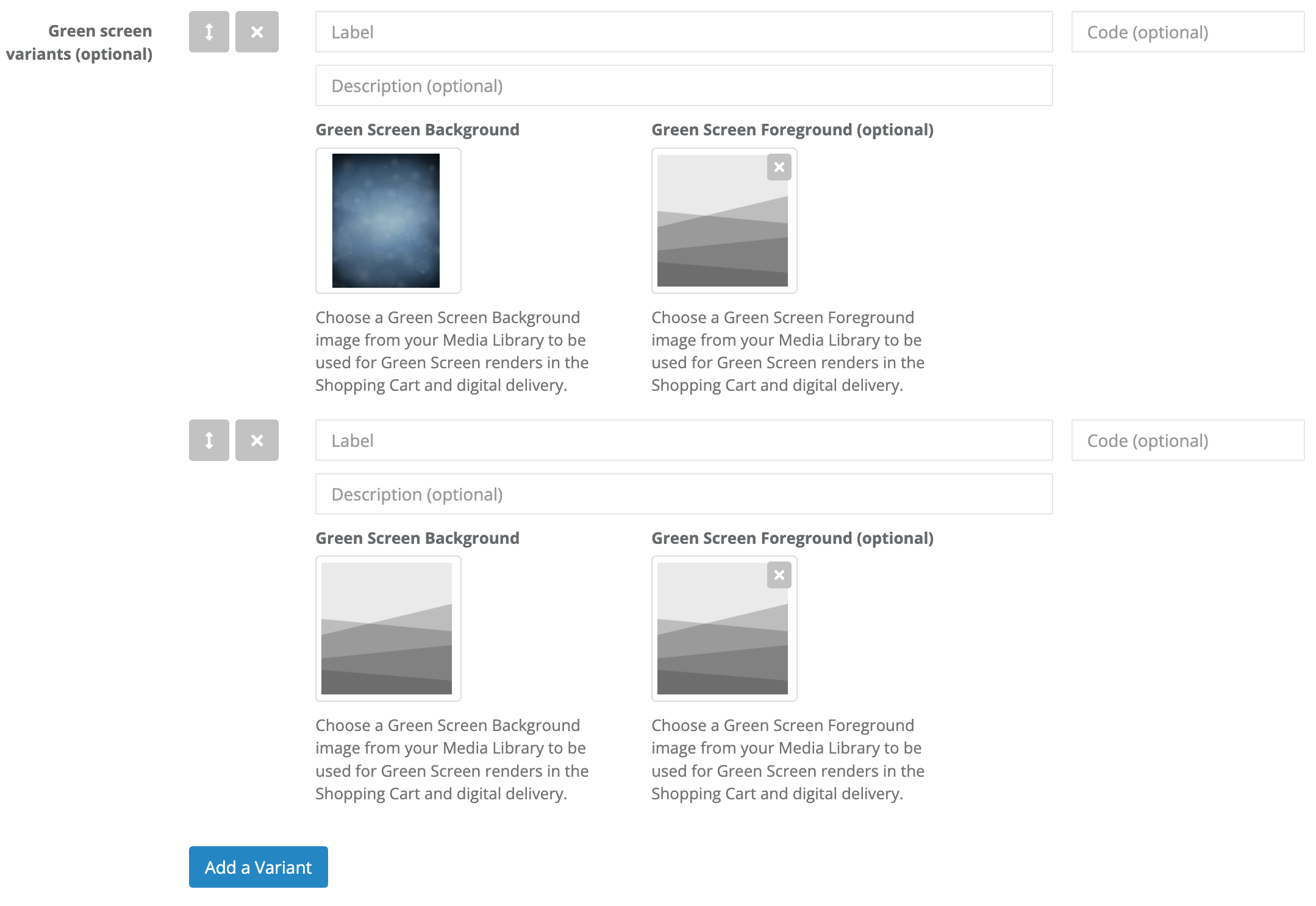
To change the type you can refer to step 4 of the tutorial in this link. - Click an image to add it to the bundle. Add a Label, Code and Description to the variant.
- To add more backgrounds/foregrounds, click the blue Add a Variant button and repeat the image selection process. Add as many options as you'd like.
- Click the green Save button at the bottom of the page to finish creating your Digital Bundle.
|
|
Note: Before you create a Digital Bundle, the Green Screen Background images need to be loaded into the Media library. See the following article for instructions: |