
Commerce
Creating a Multiple Choice Product Option allows you to add a drop-down or radio button selection to a product that prompts your customers to pick one or more of the available choices. This is perfect for when you need a customer to select multiple style options, upgrades, or other customizations. If you only need customers to select one choice, see our Product Option: Single Choice article.
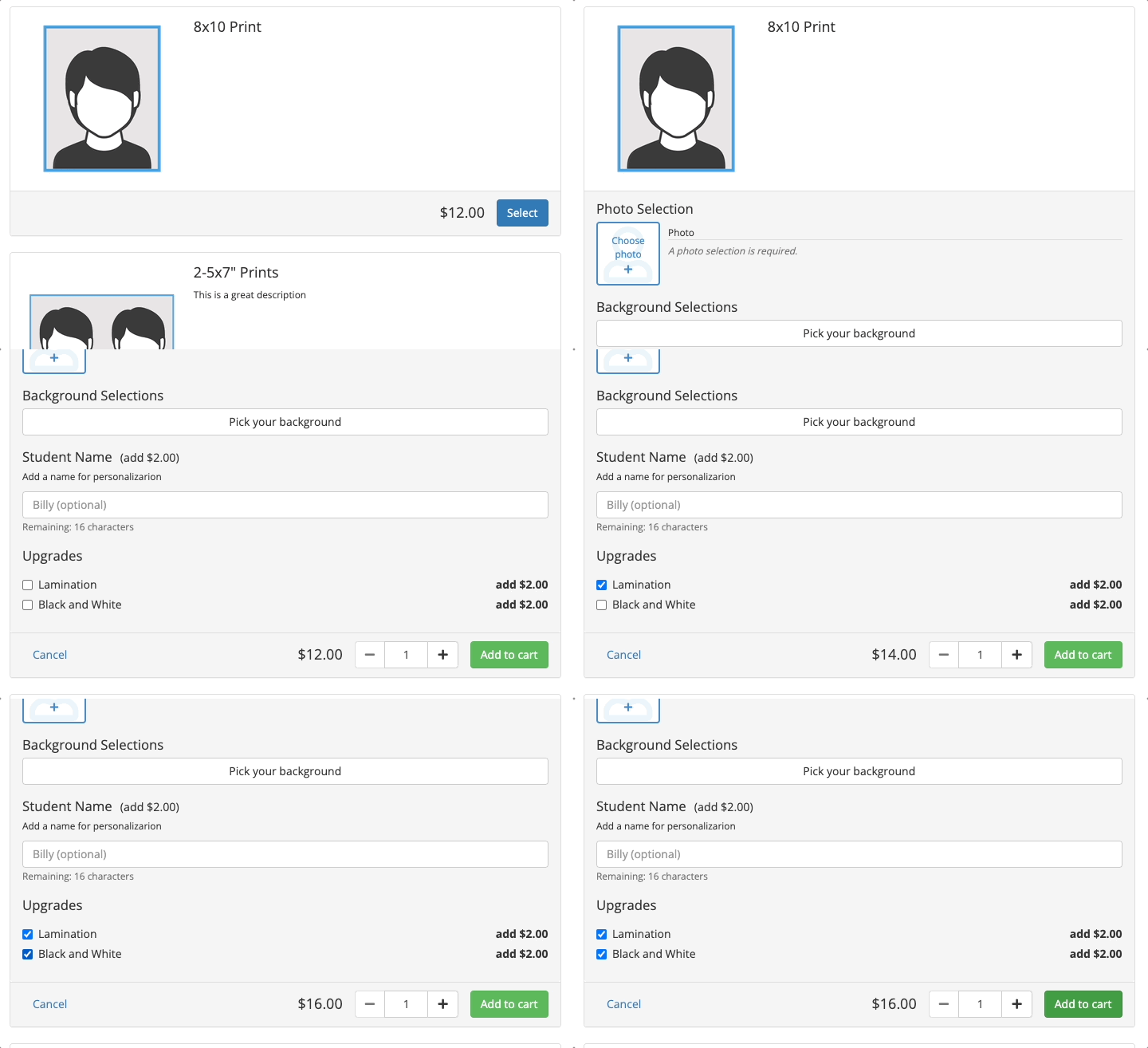
Creating a Multiple Choice Product Option
|
|
Note: If you’re using direct fulfillment with a lab, check with your support team to make sure you can add this to your catalog. |
- Inside of your Commerce account, click Products from the menu panel and select Product Options from the drop-down menu.
- Click the +Product Option button in the top right corner.
- Choose Multiple Choice for type.
- Complete the information fields using the help text provided on the page. Note: While Code is optional, we recommend always adding a code so that order exports can be created correctly.
- To add choices, or options, for your customer to select from, click the Add an Option button at the bottom of the page.
- Give each option a label (what will appear in the drop-down for customers). You can also provide a code and description if applicable.
- You can also select the “Default” checkbox to have that option appear first in the drop-down.
- When you have added all of your options, click the Save button. You can also check the “Save and create another Product Option” box before saving to be directed to another Create a Product Option page.
Adding the product option to a product/package within a catalog
- Navigate to the catalog containing the product you wish to add the product option to. Click Store from the menu panel, then select Catalogs.
- Click on the [gear] icon to select the Edit action or click on the catalog name.
- Click the “Advanced Configuration” link under the product or package. This will open the Shopping Cart Information page for that item.
- Click Add Product Option.
- Select the product option you wish to add from the drop-down menu. You can add more than one product option if needed.
- Scroll to the bottom of the page and click Save.
|
|
Quick Tips:
|